Setting IPTV : installez votre service sur chaque appareil

Suivez notre guide Setting IPTV pour configurer facilement votre service sur Smart TV, Android TV, Fire TV Stick, ordinateur, smartphone et appareils compatibles. Découvrez comment installer IPTV, choisir l’application adaptée et terminer votre installation IPTV étape par étape.

Les 4 éléments à préparer pour réussir votre Setting IPTV

Avant de lancer votre Setting IPTV, réunissez vos informations d’accès, une application compatible, une connexion stable et un appareil prêt pour l’installation IPTV. Cette préparation facilite chaque étape de configuration et limite les erreurs au démarrage.

01
Informations d’accès

Identifiants et adresse du serveur

Préparez l’adresse du serveur, votre identifiant, votre mot de passe ou le lien M3U reçu. Ces informations peuvent également être utilisées comme code IPTV Smarters Pro selon la méthode de connexion fournie.

02
Application adaptée

Choisissez un lecteur compatible

Installez l’application correspondant à votre appareil, comme IPTV Smarters Pro, Smart IPTV ou TiviMate IPTV Player, puis vérifiez qu’elle est correctement mise à jour.

03
Connexion Internet

Utilisez une connexion stable

Une connexion Wi-Fi performante ou un câble Ethernet facilite le Setting IPTV et contribue à maintenir une lecture plus fluide sur vos différents appareils.

04
Appareil préparé

Vérifiez les mises à jour

Assurez-vous que votre Smart TV, Fire TV Stick, ordinateur ou smartphone est à jour et dispose d’un espace suffisant avant de commencer votre IPTV installation.

Conseil

Pour finaliser votre Setting IPTV sans erreur, saisissez exactement les informations reçues et ne partagez jamais publiquement vos identifiants ou votre lien de connexion.

Setting IPTV : installez votre service sur chaque appareil

Choisissez votre appareil et suivez le guide correspondant pour découvrir comment installer IPTV sur Smart TV, Android TV, Fire TV Stick, PC, smartphone ou box compatible. Chaque tutoriel présente les étapes essentielles pour terminer votre installation IPTV rapidement.

How To Setup IPTV On Fire TV Stick

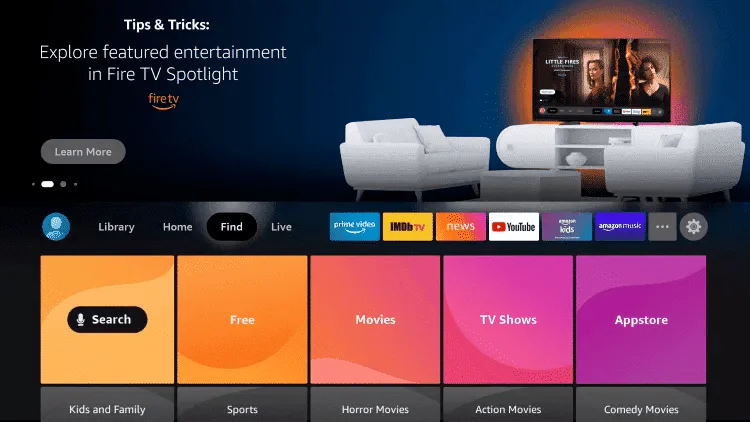
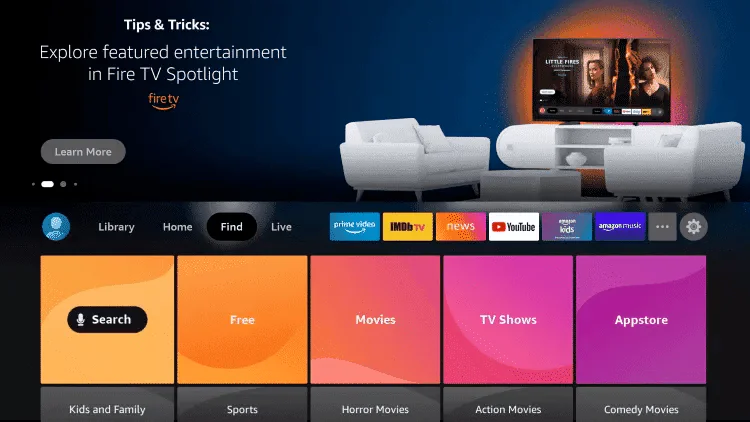
1: From the home screen of your device, hover over the Find option.

2. Click Search.

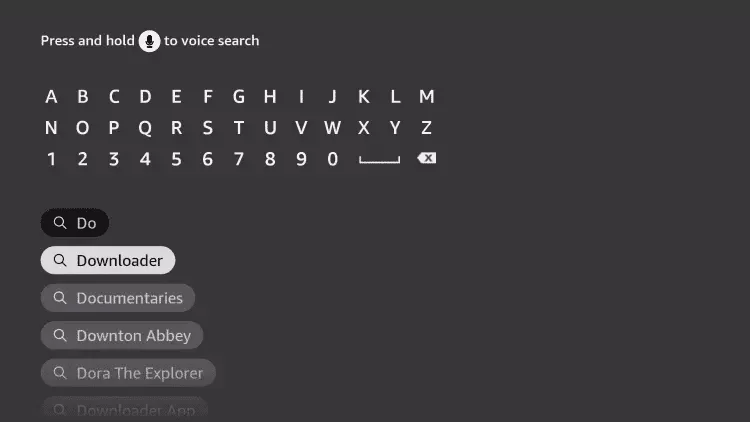
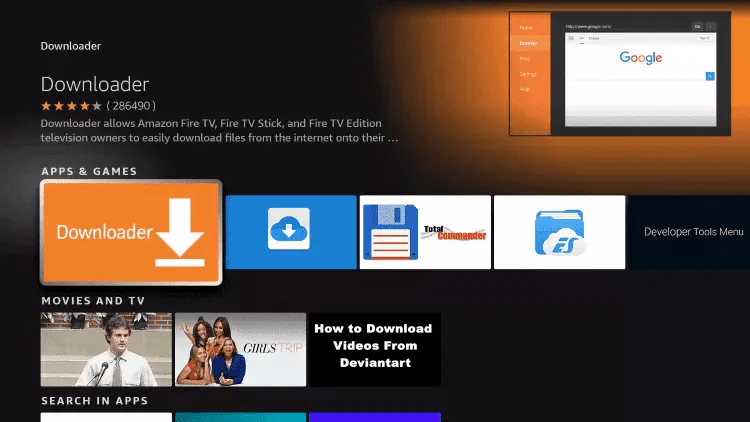
3. Search for and select Downloader.

4. Choose the Downloader app.

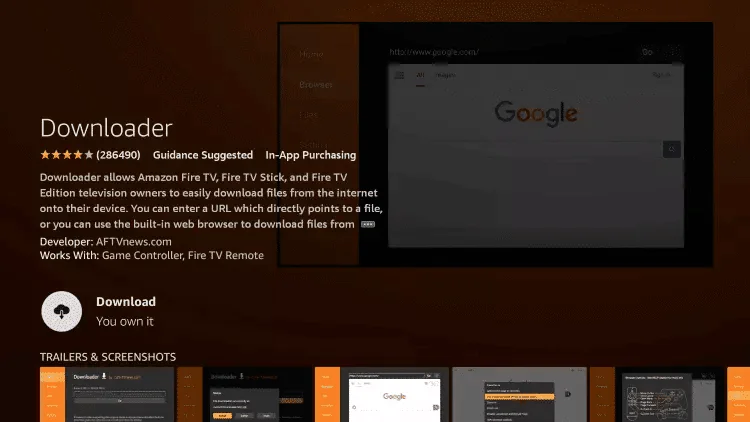
5. Click Download.

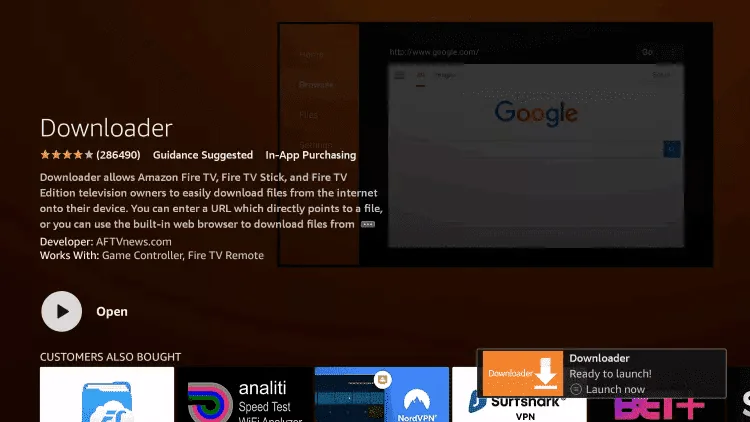
6. Once the app finishes installing click Open.

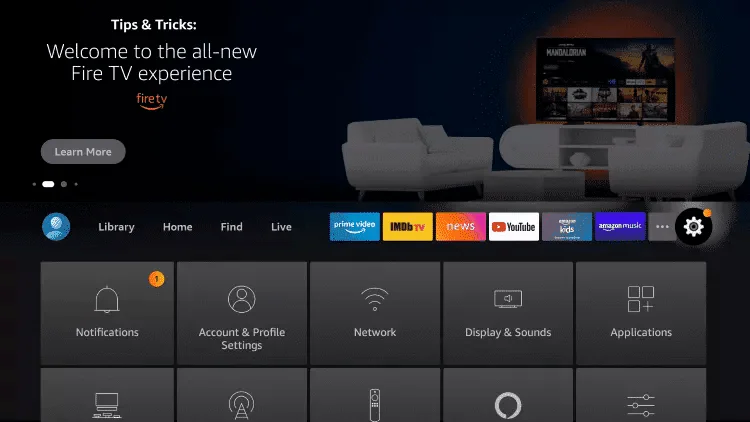
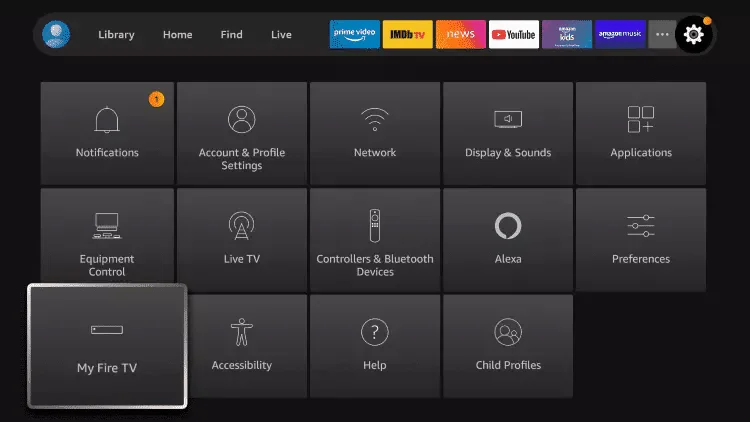
7. Return to the home screen and open Settings.

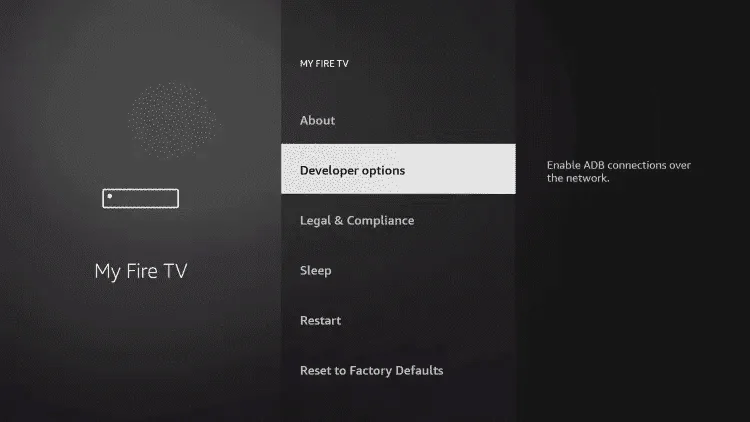
8. Click My Fire TV.

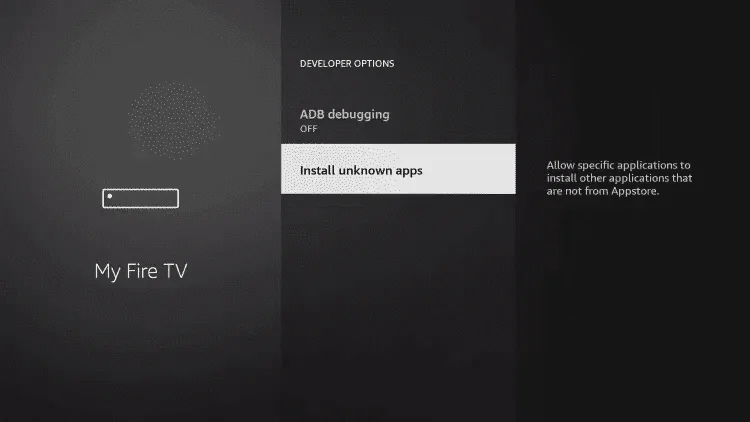
9. Choose Developer options.

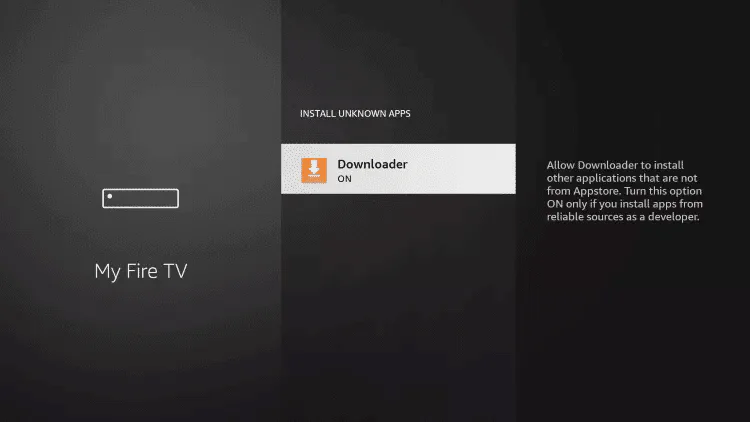
10. Click Install unknown apps.

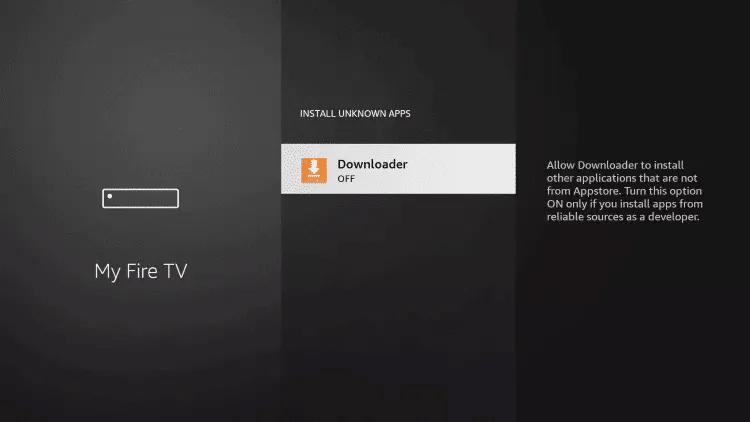
11. Find the Downloader app and click it.

12. This will turn Unknown Sources to On for the Downloader app. This will enable side-loading on your device.

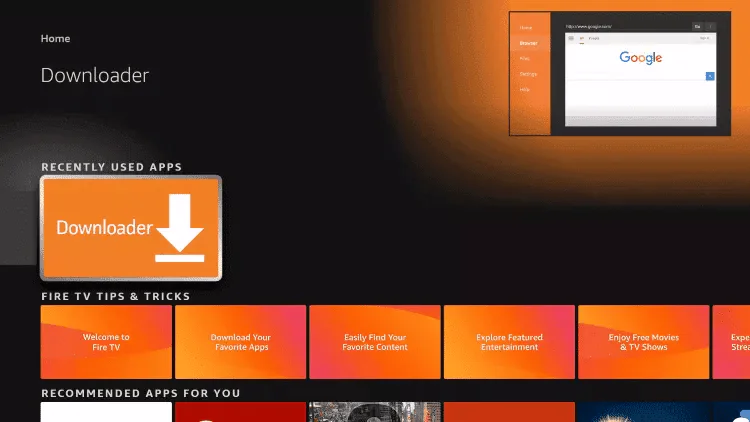
13. Launch Downloader.

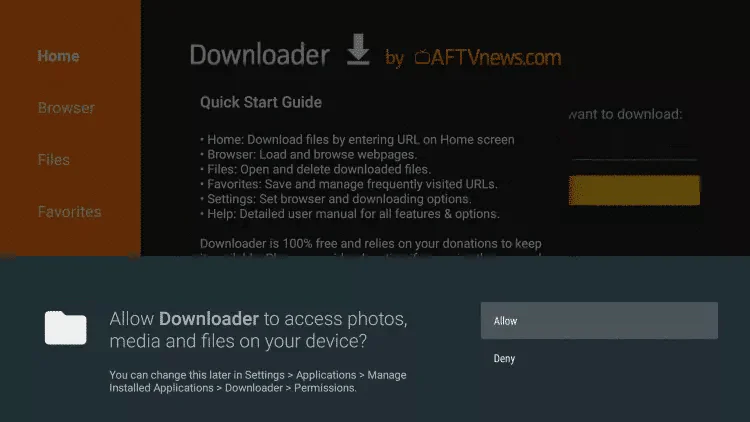
14. Click Allow.

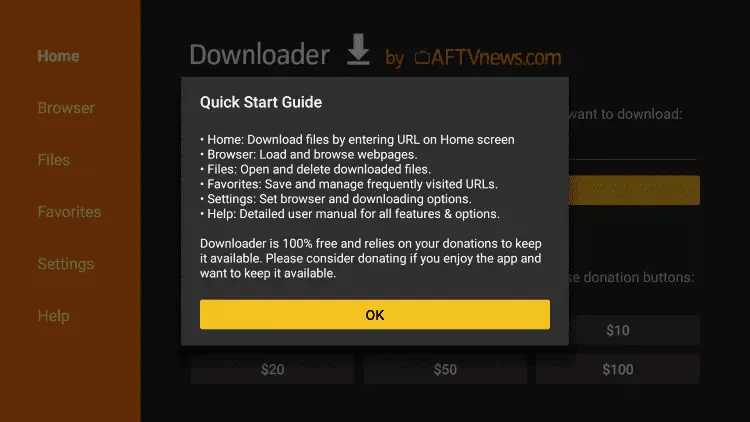
15. Click OK.

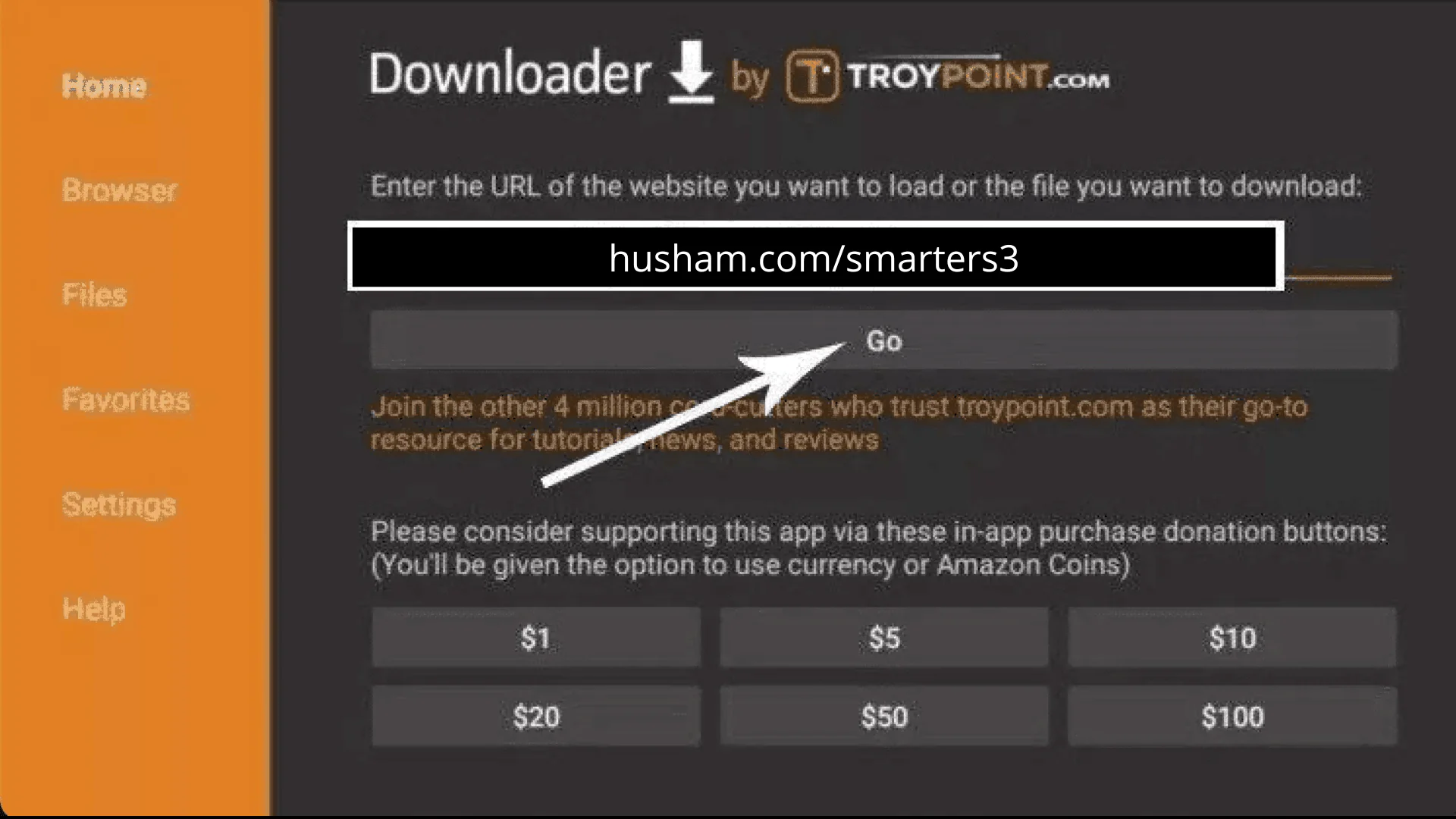
16. Type the following URL exactly as shown here: https://www.iptvsmarters.com/smarters.apk 

and click Go.

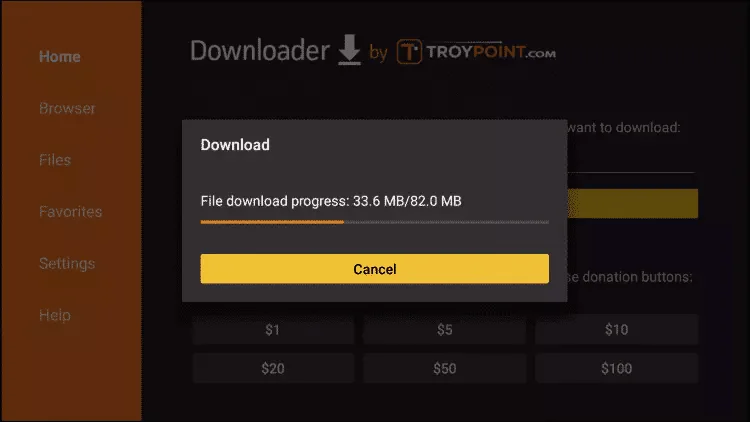
17. Wait for file to download.

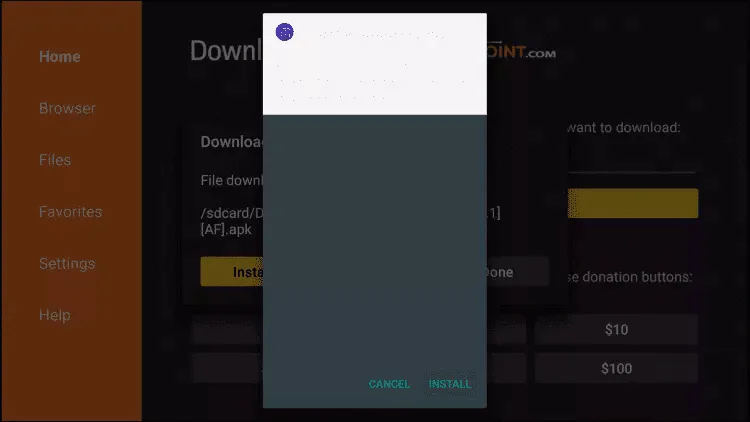
18. Click Install.

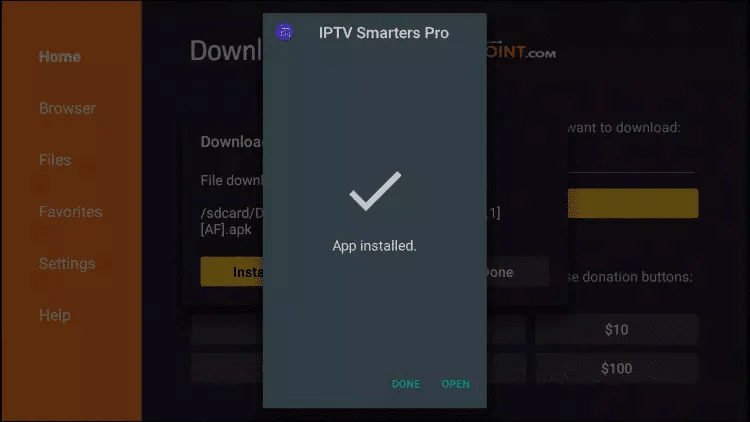
19. Click Done.

20. Open IPTV smarters then select Login with Xtream codes api.

21. Enter the login details that we sent you via Whatsapp or Email or Chat

FOR TIVIMATE 

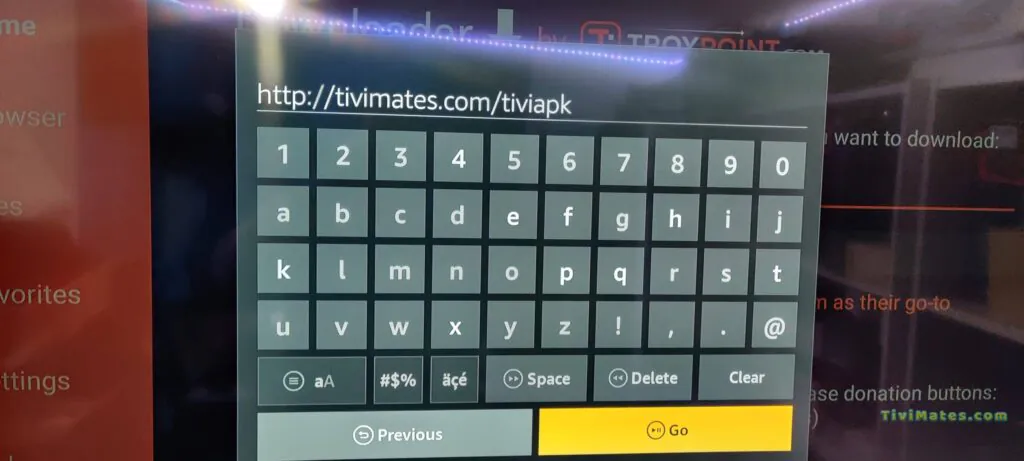
1. Type the following URL exactly as shown here: https://tivimates.com/tiviapk

and click Go.

2. Wait for file to download.

Wait for the file download to finish

3. Click Install and once the installation is completed. You can open the app.

4. Click “Add Playlist” then choose “Xtream codes

5. Enter the login details that we sent you via Whatsapp or Email or Chat

 
 IPTV ON ANDROID WITH IPTV SMARTERS 

Step 1: Start by downloading IPTV Smarters app  through this URL : https://www.iptvsmarters.com/smarters.apk
Step 2: Open the app once downloaded and Enter the login details.

Step 3: Enter the login details that we have provided you after you get a subscription with us

Now Click on “ADD USER” to proceed to the next section.

Step 4: Wait some seconds.

Step 5: Now click on “Live TV” icon as depicted in the image via a red arrow.

Step 6: Now you must select the channel group that you want to watch and proceed to the next section.

Step 7: Now you must click on the channel name and then double click on the small screen to turn into full screen as the final step.

Done

How To Setup

How To Setup IPTV On Apple/IOS With IPTV Smarters Player

Step 1: Start by downloading IPTV Smarters app from the Apple Store through this URL :
https://apps.apple.com/in/app/smarters-player-lite/id1628995509

or  you can search for it on App store

install the app on your IOS device.

Step 2: Open the app once downloaded and Enter the login details.
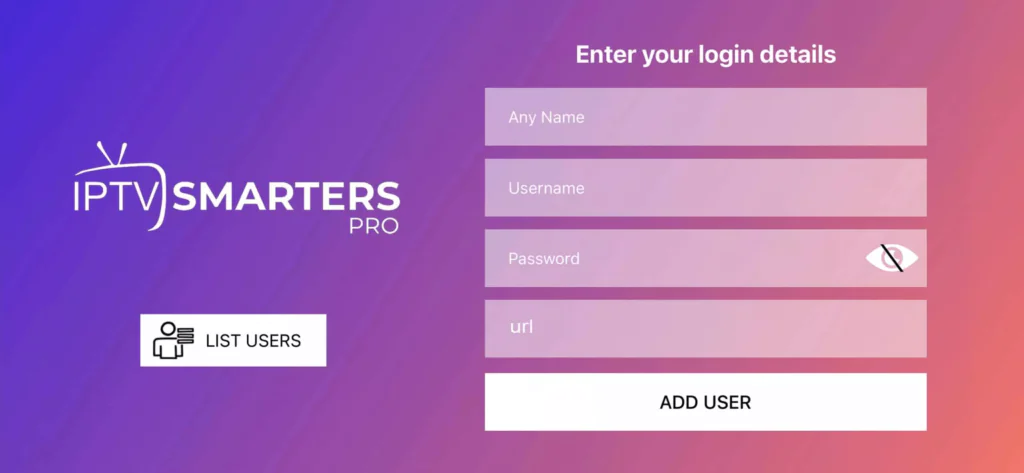
Step 3: Enter the login details that we have provided you after you get a subscription with us

Now Click on “ADD USER” to proceed to the next section.

Step 4: Wait some seconds.

Step 5: Now click on “Live TV” icon as depicted in the image via a red arrow.
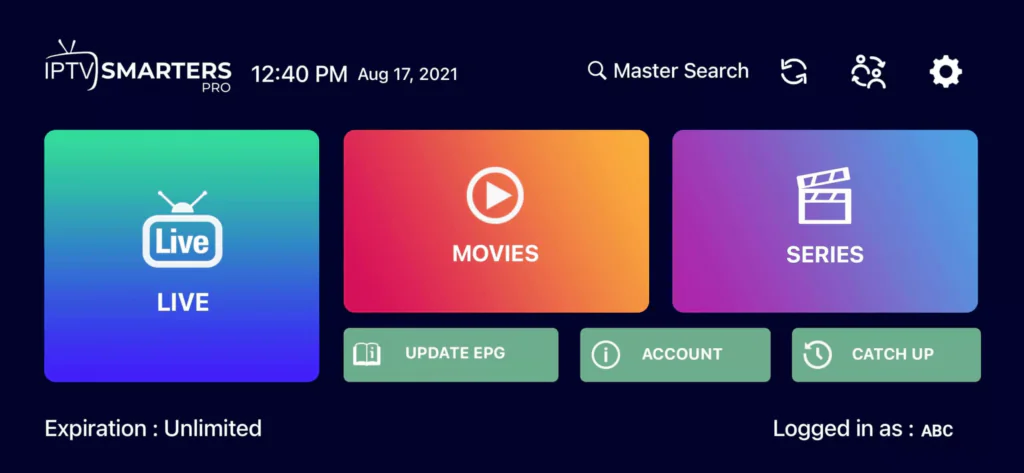
Step 6: Now you must select the channel group that you want to watch and proceed to the next section.

Step 7: Now you must click on the channel name and then double click on the small screen to turn into full screen as the final step.

Step 8: To add EPG no need to add any EPG url, Just click on “Install EPG” .

Done

On Apple/IOS With Smarters pro Player

Step 1: Start by downloading Smarters pro app from the Apple Store through this URL :
https://apps.apple.com/in/app/smarters-player-lite/id1628995509

or  you can search for it on App store

install the app on your IOS device.

Step 2: Open the app once downloaded and Enter the login details.

Step 3: Enter the login details that we have provided you after you get a subscription with us

Now Click on “ADD USER” to proceed to the next section.

Step 4: Wait some seconds.

Step 5: Now click on “Live TV” icon as depicted in the image via a red arrow.

Step 6: Now you must select the channel group that you want to watch and proceed to the next section.

Step 7: Now you must click on the channel name and then double click on the small screen to turn into full screen as the final step.

Step 8: To add EPG no need to add any EPG url, Just click on “Install EPG” .

Done
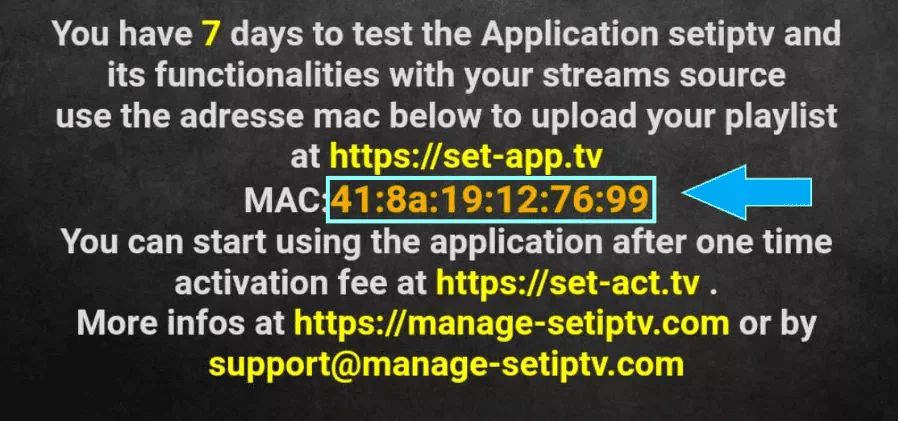
Step 1: You can download SetIPTV / NetIPTV / IBO Player Pro / IBO Player  from your TV store on Samsung, LG …

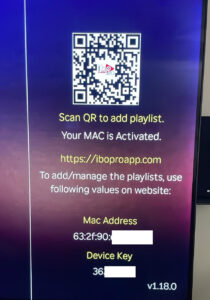
Step 2: After the installation, open the app you will find MAC Address on screen, with IBO Player Pro and IBO Player you will find MAC Address and Device Key

EX : 

Step 3: Send us the MAC address via Whatsapp/Email/Live Chat

Step 4: After few minutes, restart/reboot your TV and Open the app

Done

Windows Method :

Download IPTV Smarters app through this URL : https://www.iptvsmarters.com/download?download=windows

MAC Method :

Download IPTV Smarters app through this URL : https://www.iptvsmarters.com/download?download=mac

Step 1: Send us the MAC Address of your MAG via Whatsapp/Email/Live Chat

Step 2: After making the payment, we will send you the portal link

Step 1: Scan QR Code or Go To this Website :

IBO PLAYER - IPTV SMARTERS

Step 2: Go To Manage Playlist

Step 3: Login to add your playlist With Mac address & Device Key

Step 4: Go to add Playlist

Step 5: add your M3U Link

Enjoy

4 réglages essentiels pour fluidifier votre Setting IPTV

Après votre installation IPTV, quelques réglages simples permettent d’optimiser votre Setting IPTV, d’améliorer la stabilité et de réduire les ralentissements sur votre appareil compatible.

01
Connexion

Privilégiez une connexion stable

Utilisez un câble Ethernet lorsque cela est possible. Avec le Wi-Fi, rapprochez l’appareil du routeur et évitez les téléchargements importants pendant la lecture afin de stabiliser votre Setting IPTV.

02
Mises à jour

Gardez vos applications à jour

Installez les dernières versions de votre système et de votre lecteur, que vous utilisiez Smart IPTV, IPTV Smarters Pro ou TiviMate IPTV Player.

03
Performances

Libérez les ressources de l’appareil

Fermez les applications inutiles, videz régulièrement le cache du lecteur et redémarrez votre appareil lorsque la navigation ou le chargement deviennent plus lents.

04
Qualité vidéo

Adaptez la résolution à votre connexion

Choisissez une qualité HD plutôt que 4K lorsque le débit disponible est limité. Une résolution adaptée aide à maintenir une lecture plus régulière après votre Setting IPTV.

Les performances peuvent varier selon l’appareil, l’application utilisée, le réseau local et la vitesse réelle de votre connexion Internet.

5 solutions pour dépanner efficacement votre Setting IPTV

Après votre Setting IPTV, une erreur d’identifiants, une application obsolète ou une connexion instable peut perturber votre installation. Consultez ces solutions pour vérifier rapidement votre configuration.

01 IPTV Smarters Pro ne fonctionne plus Application bloquée, lente ou impossible à ouvrir

Vérifiez d’abord votre connexion Internet, puis fermez complètement l’application. Videz son cache, installez les mises à jour disponibles et redémarrez votre appareil avant de relancer votre Setting IPTV.

Vérifier Internet Vider le cache Mettre à jour Redémarrer
02 Les identifiants sont refusés Erreur de connexion ou informations incorrectes

Recopiez exactement l’adresse du serveur, l’identifiant et le mot de passe reçus. Vérifiez également votre code IPTV Smarters Pro et supprimez les espaces ajoutés avant ou après chaque information utilisée pour le Setting IPTV.

Adresse du serveur Identifiant Mot de passe Code de connexion
03 Les chaînes ou programmes ne se chargent pas Écran vide, chargement continu ou contenu indisponible

Relancez l’application et redémarrez votre routeur. Vérifiez ensuite que vos informations d’accès sont toujours actives et correctement saisies. Testez une autre chaîne afin de déterminer si le problème concerne l’ensemble du Setting IPTV ou seulement un contenu précis.

Relancer l’application Redémarrer le routeur Tester une autre chaîne
04 La lecture se coupe ou ralentit Buffering, freezes ou qualité irrégulière

Utilisez une connexion Ethernet ou rapprochez votre appareil du routeur Wi-Fi. Fermez les applications actives en arrière-plan et choisissez une résolution HD lorsque votre débit ne permet pas une lecture 4K stable.

Connexion Ethernet Wi-Fi plus proche Fermer les applications Réduire la qualité
05 L’installation IPTV Fire Stick ne fonctionne pas Application absente ou configuration incomplète

Vérifiez que l’application choisie est compatible avec votre appareil, puis reprenez les étapes du Setting IPTV avec le guide IPTV Fire Stick. Pour installer IPTV on Fire TV Stick ou sur un IPTV Amazon Stick, utilisez uniquement une application disponible ou autorisée sur votre appareil.

Application compatible Guide Fire TV Stick Informations correctes
i

Pour sécuriser votre Setting IPTV, ne partagez jamais publiquement vos identifiants, votre mot de passe ou votre lien de configuration.

FAQ Setting IPTV : configurez facilement votre appareil

Retrouvez les réponses essentielles pour réussir votre Setting IPTV, choisir une application compatible et terminer votre IPTV installation sur Smart TV, ordinateur, Fire TV Stick ou appareil mobile.

Le choix dépend de votre équipement. IPTV Smarters Pro convient à de nombreux téléviseurs, ordinateurs et appareils mobiles. Smart IPTV, SET IPTV et TiviMate IPTV Player peuvent également être utilisés sur certains appareils compatibles.

Les informations nécessaires sont transmises après l’activation de votre accès. Elles peuvent comprendre une adresse de serveur, un identifiant, un mot de passe ou un lien M3U. Recopiez chaque élément exactement, sans ajouter d’espace.

Vous pouvez généralement enregistrer vos informations sur plusieurs appareils, mais l’utilisation simultanée dépend de la formule choisie. Consultez les conditions de votre offre avant de lancer le service sur plusieurs écrans en même temps.


Pour IPTV Smarters Pro PC, téléchargez une version compatible, ouvrez l’application puis ajoutez les informations reçues. Pour IPTV Smarters Pro TV, installez l’application depuis la boutique de votre téléviseur lorsqu’elle est disponible, puis suivez la même procédure de connexion.

Installez une application compatible sur le nouvel appareil et saisissez de nouveau vos informations. Avec SET IPTV ou Smart IPTV, vérifiez l’adresse MAC affichée par le nouvel appareil, car elle peut être différente de celle utilisée auparavant.

Finalisez votre Setting IPTV avec notre assistance

Vous rencontrez encore une difficulté pendant votre installation ? Contactez notre équipe pour obtenir de l’aide avec la configuration de votre appareil, vos informations de connexion ou l’application utilisée.